PowerShell: Active Directory
Prerequisites for Active Directory on client machine
- PowerShell Version 5 and above.
- Active Directory role installed on Server Manager on targeted server
- ‘ActiveDirectory’ module on localhost and AD server
- Sufficient Privileges for Active Directory Server
Set PowerShell Execution Policy
-
Open PowerShell command prompt in Run as Administrator mode:
Go to Start-> Search PowerShell -> Right Click on Windows PowerShell -> Click Run as Administrator option -
Change execution policy of computer to allow running PowerShell scripts by using below:
command: Set-ExecutionPolicy unrestricted –Force
Updating PowerShell Version
- Download Windows Management Framework from below url :(Windows PowerShell version 5.1)
https://www.microsoft.com/en-us/download/details.aspx?id=54616
System requirements:
WMF 5.1 requires Microsoft .NET Framework 4.5 or above. You can install Microsoft .NET Framework 4.5 or above by following the instructions at Installing the .NET Framework
Use a 64-bit version of Windows. Support for the 32-bit version the Microsoft Azure Active Directory Module for Windows PowerShell was discontinued in October, 2014.
Need to restart machine once “Windows Management Framework 5.1“ installation is completed.
Open PowerShell by right clicking and select Run As Administrator option and use below commands on that terminal to proceed with module installation.
- Check if PowerShell version is updated to 5.1 using below command:
Command:
$PSVersionTable
Expected output:
| Name | Value |
|---|---|
| PSVersion | 5.1.14409.1005 |
| PSEdition | Desktop |
| PSCompatibleVersions | {1.0, 2.0, 3.0, 4.0...} |
| BuildVersion | 10.0.14409.1005 |
| CLRVersion | 4.0.30319.42000 |
| WSManStackVersion | 3.0 |
| PSRemotingProtocolVersion | 2.3 |
| SerializationVersion | 1.1.0.1 |
Modules required for Active Directory Plugins:
Module name: ActiveDirectory
Use below command to check available modules via powershell (Open powershell with run as Administrator mode) :
command: Get-Module -ListAvailable -Name ActiveDirectory
Expected output:
Directory: C:\Windows\system32\WindowsPowerShell\v1.0\Modules
ModuleType          Version    Name             ExportedCommands
----------          -------    ----             ----------------
Manifest            1.0.0.0    ActiveDirectory  {Get-ADRootDSE, New-ADObject, Rename-ADObject, Move-ADObject...}
In normal Windows Desktop OS Active Directory module needs to be installed and setup. In case of Windows Server OS Active Directory module can be setup using Add features in Server Manger. In the following sections we describe Active Directory module setup on both Windows Desktop OS and Windows Server OS.
Install Active Directory Module on Windows Desktop OS
If Active Directory module is not already installed on Windows Desktop OS following are the steps for Active Directory module installation and setup.
Prerequisites
You can use the following versions of Windows:
• Windows 10, Windows 8.1, Windows 8 or Windows 7 Service Pack 1 (SP1)
Step 1: Install required software
These steps are required once on your computer, not every time you connect.
- Requires Microsoft .NET Framework 4.5 or above. You can install Microsoft .NET Framework 4.5 or above by following the instructions at Installing the .NET Framework.
- Download and install RSAT (Remote Server Administration Tools) for supported windows version by referring below locations:
Need to restart machine once RSAT is installed
Download locations for RSAT:
-
Remote Server Administration Tools (RSAT) for Windows 7 with SP1 (both x86 and x64)
-
Remote Server Administration Tools (RSAT) for Windows Vista 32-bit (x86)
-
Remote Server Administration Tools (RSAT) for Windows Vista 64-bit (x64)
Step 2: Enable Tools
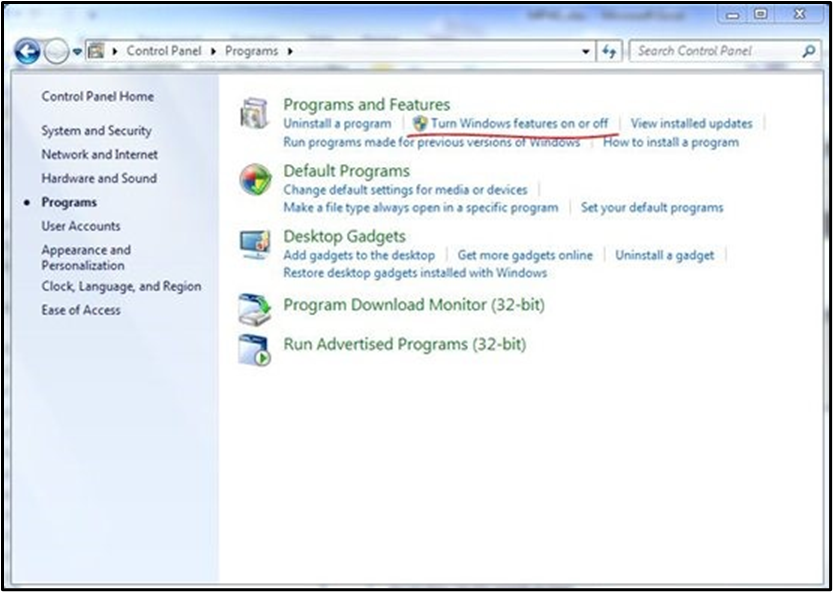
You must enable the tools that you want to use by using Control Panel. To do this, click Start, click Control Panel, click Programs and Features, and then click Turn Windows features on or off. In the RSAT releases for Windows 10, Windows 8.1, and Windows 8, tools are again all enabled by default. You can open Turn Windows features on or off to disable tools that you don't want to use. In RSAT for Windows 10, Windows 8.1, and Windows 8, you access GUI-based tools on the Tools menu from within the Server Manager console.
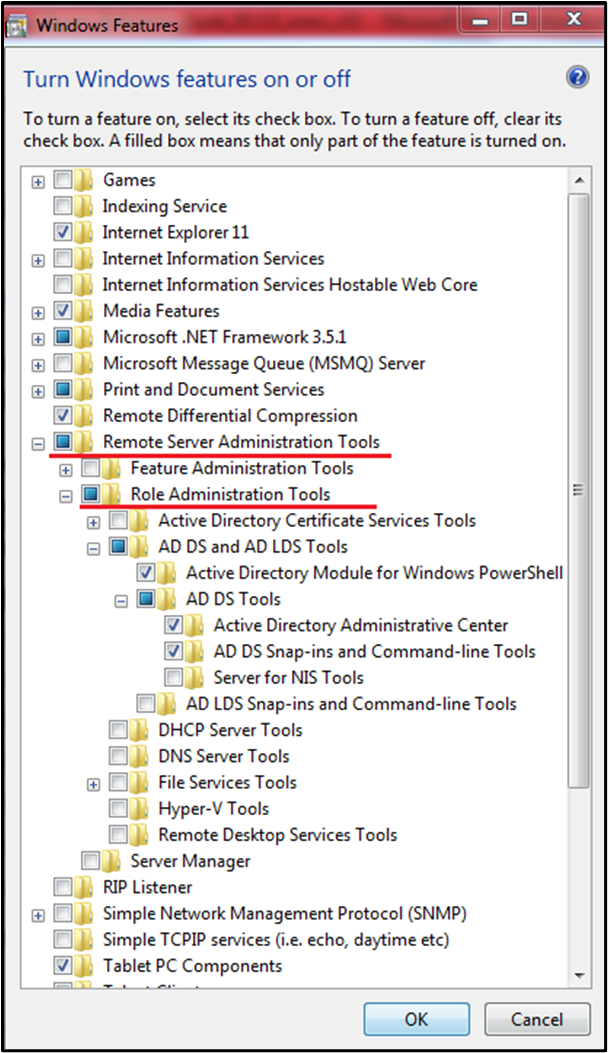
For RSAT on Windows Vista and Windows 7, you must enable the tools for the roles and features that you want to manage after you run the downloaded installation package. Note: You don't have to do this for RSAT on Windows 8 or later versions. To install Active Directory on Windows Vista and Windows 7, click on Remote Server Administration Tools, click on Role Administration Tools, check the AD DS and AD LDS Tools option and click on OK.
Install ActiveDirectory Module on Windows Server OS
Prerequisites You can use the following versions of Windows:
- Windows Server 2016, Windows Server 2012 R2, Windows Server 2012, or Windows Server 2008 R2 SP1
Step 1: Install required software
Note: These steps are required once on your computer, not every time you connect.
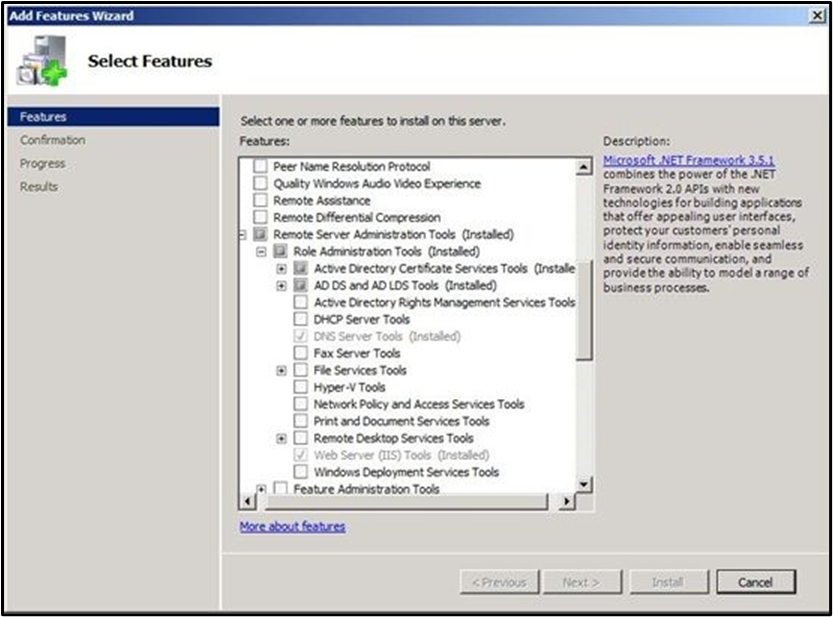
- Requires Microsoft .NET Framework 4.5 or above. You can install Microsoft .NET Framework 4.5 or above by following the instructions at Installing the .NET Framework. Step 2: Enable Tools If you have to install management tools on Windows Server 2008, Windows Server 2008 R2, Windows Server 2012, or Windows Server 2012 R2 for specific roles or features that are running on remote servers, you don't have to install additional software. Start the Add Features Wizard in Windows Server 2008 or Windows Server 2008 R2 or the Add Roles and Features Wizard in Windows Server 2012 and later versions. Then, on the Select Features page, expand Remote Server Administration Tools, and then select the tools that you want to install. Complete the wizard to install your management tools.
Confirm Module Availability
Use below command to check available modules via PowerShell (Open PowerShell with Run as Administrator mode):
command: Get-Module -ListAvailable -Name ActiveDirectory
Expected output: Directory: C:\Windows\system32\WindowsPowerShell\v1.0\Modules
ModuleType     Version        Name               ExportedCommands
----------     -------        ----               ----------------
Manifest       1.0.0.0        ActiveDirectory    {Get-ADRootDSE, New-ADObject, Rename-ADObject, Move-ADObject...}