Connect Process Studio to AutomationEdge server
When you start Process Studio, a Process Studio splash screen appears. It shows Process Studio Version, Framework Version, and Supporting Framework Versions. At the bottom is a progress bar which shows the background activity; such as Connecting to Server, Validating Process Studio, Downloading Plugin, Loading Plugin, Initializing Workspace, and so on. When you start Process Studio for the first time an AutomationEdge Connection details pop-up window also appears.
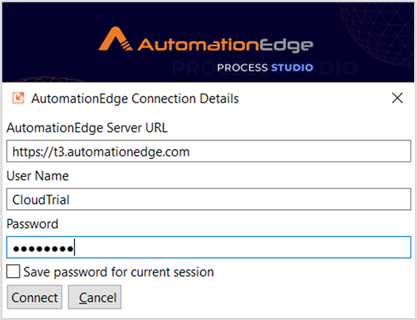
Provide the following AutomationEdge Server connection details:
- Enter the AutomationEdge Server cloud instance URL:
- URL for Production Instance: https://ondemand.automationedge.com
- URL for Trial/RPAaaS Instance: https://t4.automationedge.com
- URL for Training Instance: http://t3.automationedge.com
- In the User Name and Password fields, enter the user’s name and password.
- Click Connect. You get connected to the AutomationEdge server.
To save the password for the current session, select the Save password for current session checkbox. Saving the password ensures that you don’t need to enter password for every activity that needs to communicate with the server, such as plugin synchronization and publishing workflows. AutomationEdge SSO user can be used for Process Studio Single Sign-On. For more details, see AutomationEdge Process Studio User’s guide.
- When you start the Process Studio, the Open Workspace dialog appears with the default workspace. For example, ps-workspace.

When you register the Process Studio for the first time, the Open Workspace dialog displays the ps-home/ps-workspace directory, by default. If you select ps- workspace as your directory, then the Process Studio uses the directory as the workspace. Else, click Browse and select the directory of your choice. If the same workflow is open in any other Process Studio, then you will see an error message.
- When you sign in to the Process Studio, new or updated plugins from the AutomationEdge server are automatically synchronized. You can see the plugins in the Sync Plugins pane. You can also manually synchronize the plugins through Process Studio, Tools → Sync → Plugins. For more details, see AutomationEdge Process Studio User’s guide.